Decks · WPS Presentation
Build a PPTX you can present tonight and still open in PowerPoint tomorrow.
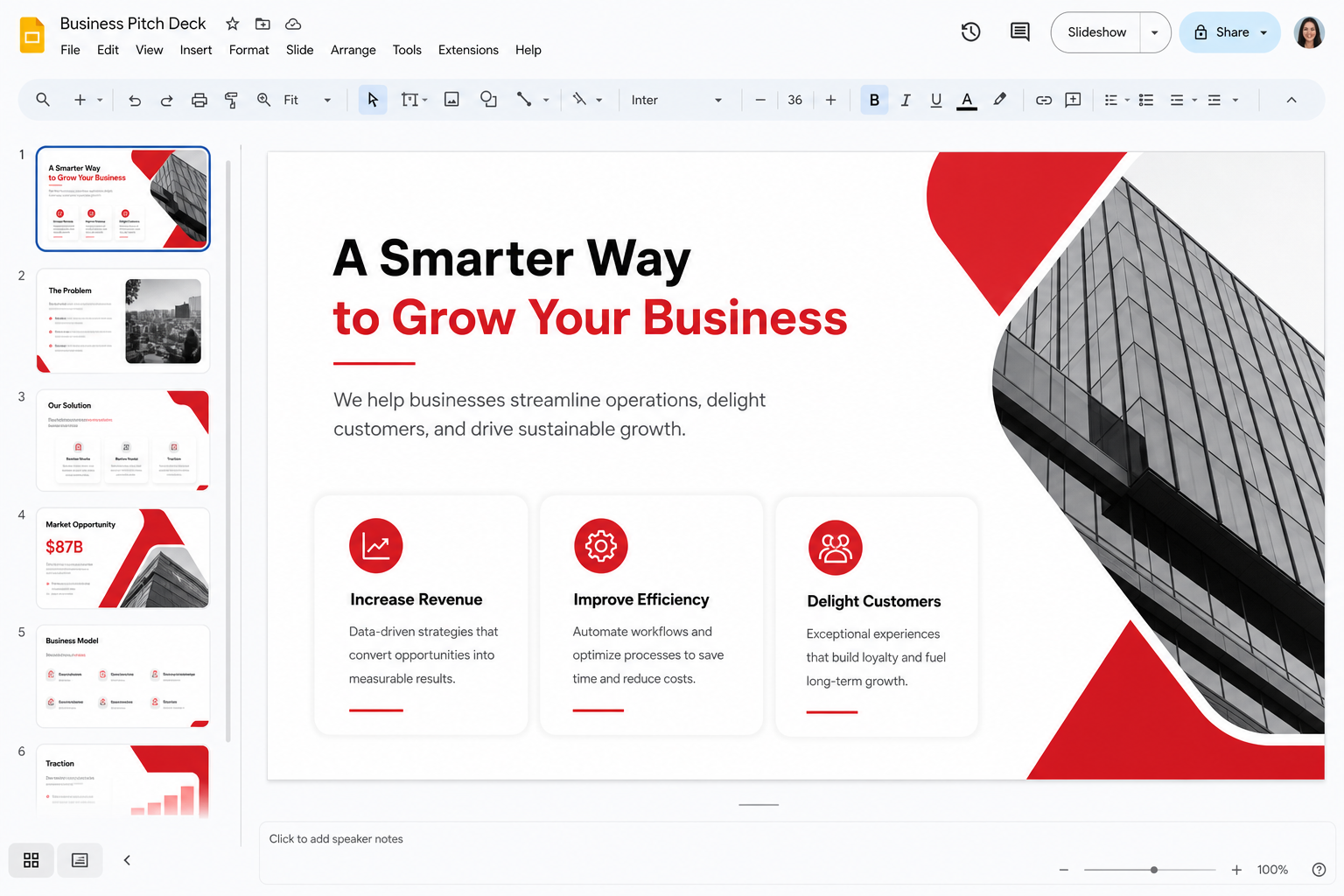
Presentation is the slide room in WPS Office. It speaks PPTX as a first-class format, ships a template shelf, and can ask WPS AI for a first draft. This handbook is about surviving the hand-off, not collecting animations.
What Presentation is, and what it is not
WPS Office is one suite: Writer, Spreadsheet, Presentation, PDF, Photo, plus WPS AI and Cloud. Presentation is the app that opens the PPT and PPTX files your class, church, or sales team already lives in. Kingsoft cites 47 formats across the suite. For decks, PPTX is the default you should set on day one. A Kingsoft-only save format is how you create a file the venue laptop cannot open.
The editor is meant to feel like PowerPoint. You get a slide sorter, a notes pane, a presenter view on a second display, and a ribbon that puts Insert, Design, Transitions, and Slide Show where your hands already go. You do not get a promise that every morph, every custom path, and every embedded video codec will play on someone else’s machine. Plan for the boring path: widescreen 16:9, system fonts or embedded fonts, and videos you tested on the actual cable that will be in the room.
The core suite is free. Ads are common on free skins. Extra cloud (about 1 GB free, around 20 GB paid), some template packs, and daily AI quotas on Pro+ are the usual paid walls. Install from wps.com/download or Microsoft Store 9NSGM705MQWC only. Details sit on download, free versus Premium, and security.
Start from a layout, not from a blank chaos
A good deck is a sequence of layouts, not a pile of text boxes you dragged until they looked centered. Use the built-in title, title-and-content, two-column, and section-header layouts. When you need a house look, edit the slide master once. If you restyle each slide by hand, the tenth slide will drift and the twentieth will look like a different product.
Vendor marketing claims more than 100,000 templates across WPS. Treat that number as a catalog size, not as a quality score. Many skins are busy. Many include dummy charts and stock photos you must replace. Pick a quiet template, delete the sample slides you will not use, and then write. The templates page covers licensing caution and the “pretty but illegal for client work” problem. A classroom deck and a paid client pitch have different rules.
Fonts again: if the venue PC does not have your display face, titles reflow and a punchline wraps onto a third line. Use a widely installed family, or embed fonts and still carry a PDF backup. Linux labs and locked-down school images are where this fails first. The guides hub is the place for font and export recipes.
Writing slides that a human can present
One idea per slide is still the rule that saves a room. If you need a paragraph, you needed a document. Put the paragraph in Writer or in speaker notes. The slide itself should be a claim, a number, or a picture. Speaker notes are how you stay honest without filling the wall with 14-point text. Presenter view shows those notes on your laptop while the projector shows the slide. Test that view on the same machine you will carry. A docking station that “used to work” is not a test.
Charts belong in the deck only after they belong in a sheet. Build the numbers in Spreadsheet, then paste or insert a chart you can still update. A screenshot of a chart is fine for a one-off. It is a trap if the number will change at 4 p.m. Keep the XLSX next to the PPTX in the same folder when the story is live.
Pictures: crop and annotate in Photo before insert. Compress. A 20 MB photo on every slide is how a USB deck fails to copy during the five-minute setup window. Alt text is not decoration if you later export a handout; it is also how you remember what a screenshot was supposed to prove.
AI slides, then the delete key
WPS AI can generate a first deck from a prompt: a title, a problem slide, a three-pillar solution, a timeline, a thank-you. That structure is a scaffold. It is also generic. Replace the clichés. Replace the invented statistics. Replace the stock claims about “synergy” with the one number your audience already distrusts you for avoiding. Pro+ plans still impose daily AI limits; free users hit them sooner. The AI page is the longer warning about confidential prompts and hallucinated citations.
A useful AI workflow is: outline in Writer or in a notes file, ask AI for a twelve-slide skeleton, then rebuild the masters so the AI slides match your real template. Do not present the raw AI theme unless you enjoy looking like every other deck generated that week.
Animation, video, and the room that has no sound
Simple appear and fade transitions are enough. Fancy motion looks late when the GPU is a classroom machine from 2016. If you animate, animate one object on a slide and leave the rest still. Video should be a common format, stored in the same folder as the deck, and tested with the room muted — because rooms are muted. Carry a still frame as a backup slide. Embedded media is the first thing that breaks after a cloud download on hotel Wi-Fi.
WPS Cloud can hold a deck so your phone and laptop share it. Free cloud is about 1 GB; paid plans often advertise around 20 GB. A media-heavy course can blow through 1 GB without trying. Keep a local copy. Co-edit is fine for two people fixing typos. It is a poor plan when six students type on the same slide. Google Docs and Google Slides still handle that pile-on better. See collaboration and Cloud.
The hand-off test
Before you travel, do three opens: WPS on your PC, PowerPoint or LibreOffice on a second machine if you can, and a PDF export on a phone. Look at the title slide, a chart slide, and a slide with a logo in the corner. If anything crawled, fix it at home. When the client must sign off on words but not edit art, send PDF. When they must edit, send PPTX and accept that their theme might fight yours. The compare page is the suite-wide version of this honesty.
Comments exist for review. Use them. Tracked edits are less central than in Writer, but a comment thread still beats a 2 a.m. email that says “slide 9.” Do not put secrets in comments you will forget to delete before the public export.
A deck checklist
- Default save is PPTX. Carry a PDF backup for the venue PC.
- Edit the master, not twelve one-off text boxes.
- Use a quiet template; strip dummy photos and dummy charts.
- System fonts or embedded fonts, then a second-machine test.
- Notes for you, claims for the wall, numbers from a real sheet.
- Crop images in Photo; keep file size small enough for a USB copy.
- Treat AI output as a skeleton. Check every fact. Watch daily limits.
- Test presenter view and video on the hardware you will actually use.
Related: apps hub, guides, WPS versus Microsoft, and official downloads.