Documents · WPS Writer
A Word-shaped ribbon for letters, theses, and the file someone else must open.
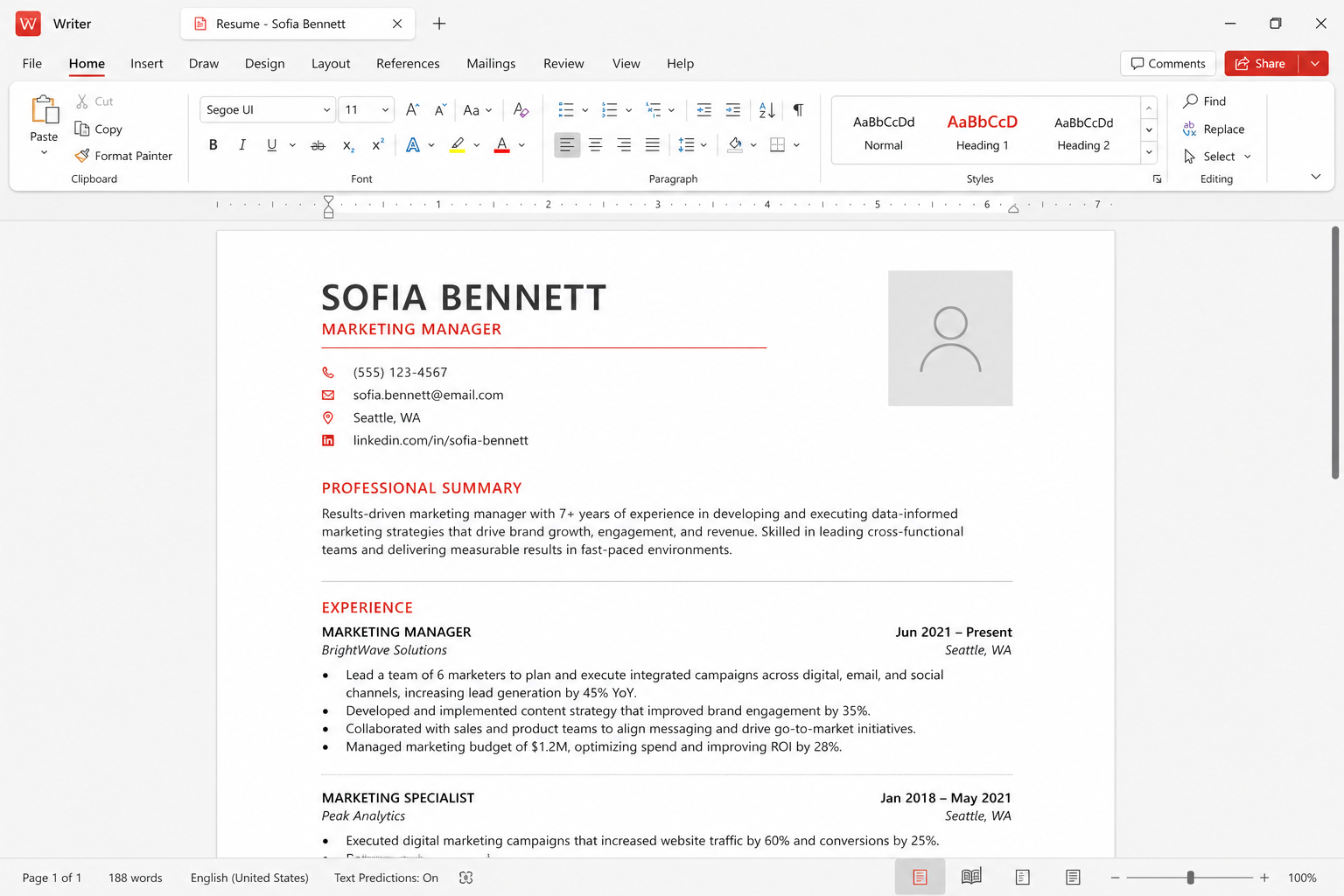
Writer is the document room in the Kingsoft suite. It is built to feel like Microsoft Word on purpose: tabs, styles, fonts, and mail merge sit where muscle memory expects them. This page is an independent field guide, not a vendor brochure.
Templates
Start from a resume, letter, or report skin, then replace every placeholder before you send it.
Comments & review
Track changes and comments work. Many simultaneous typists still belong in Google Docs.
WPS AI drafts
Use AI to sketch a letter, then rewrite every fact. Pro+ still has daily AI limits.
What Writer is for
WPS Office ships as one installer: Writer, Spreadsheet, Presentation, PDF, and a lightweight Photo tool, plus optional WPS AI and Cloud. Writer is the prose room. If you already know Word, the ribbon should feel familiar on purpose — Kingsoft spent years putting tabs and keyboard habits where a student or clerk already reaches.
The suite advertises 47 file formats. For Writer, DOC and DOCX are the daily ones, and those Microsoft formats are first-class, not an afterthought export. Keep DOCX as the default so a professor or clerk who only owns Microsoft 365 never has to install your software.
Core editing is free. Ads are common. Extra cloud, some PDF extras, and heavier AI sit behind paid plans — confirm prices on wps.com. Official installers belong on wps.com/download or Microsoft Store listing 9NSGM705MQWC. This site never hosts EXE files. See the download hub and the safety notes before you click a search ad.
Set DOCX as the daily default
Open Writer on day one and decide what “Save” means. If you leave the default on a Kingsoft-native format, you will eventually mail a file that the other party cannot open cleanly. Set DOCX as the default save format. Keep a second habit: when layout must not drift — a signed letterhead, a form that lines up with a window envelope, a thesis title page — export a PDF and keep the DOCX as the editable source.
Compatibility is good, not magical. Unusual section breaks, floating text boxes, and one-PC fonts still cause “it looked fine on my laptop.” Embed a house font or switch to Calibri, Times New Roman, Arial, or Georgia before you send. When layout is legally sacred, export PDF and reopen it in a second program; if a logo shifts, fix the source. The WPS versus Microsoft comparison covers the wider story.
Ribbon, styles, and why styles beat the paintbrush
The Writer ribbon copies the Word rhythm: Home, Insert, Layout, References, Review, View. A command may sit one tab over from muscle memory. The first week is finding those misses, not learning a new philosophy of documents.
Styles are the feature people skip and then regret. Heading 1, Heading 2, Normal, Quote, and a caption style keep a twenty-page report from turning into a pile of bold sizes. If you only enlarge titles by hand, a later font change becomes a scavenger hunt. Apply styles, then modify the style once. Writer will restyle the whole document. That is how a student handbook, a clinic policy, or a grant narrative stays consistent when three people touch it across a month.
Fonts deserve a short warning. Writer can use the fonts installed on your system. It cannot invent a font that the next computer does not have. Substitutions change line breaks. Line breaks change page numbers. Page numbers change a table of contents. If you collaborate with people on Windows, macOS, and Linux, pick a font that all three already have, or embed the font and test the file on a second machine. Linux users hit this first; see the how-to guides when symbol fonts collapse.
Mail merge without making a mess
Mail merge is Writer’s quiet superpower for small offices. A membership letter, a fee reminder, or a parent notice can pull names and addresses from a Spreadsheet sheet or a simple table. The workflow is the same idea as Word: a main document with fields, a data source, a preview, then a finish-and-merge step that either prints or creates individual files.
Treat the data sheet as the source of truth. Clean columns before you merge. One column for first name, one for last name, one for postal code. Do not hide two addresses in a single cell because it “looks fine.” Preview at least five records, including the longest name and the empty field. Empty fields create ugly double spaces and leftover commas. Fix the template, then merge the full list.
A twenty-letter merge still beats copy-paste. For two thousand rows, test a fifty-row slice first and keep the main file and the data sheet in the same local folder — Cloud paths that drop offline mid-merge waste an afternoon. Start letterhead from a template, then attach fields; do not start from a pretty file that still contains dummy names.
Pictures, headers, and the last centimeter of the page
Anchor an image to a paragraph if the caption must travel with it. Crop first in the Photo tool. Writer is not an image editor — a 12-megapixel phone photo will bloat the file. Compress when PDF export starts to crawl.
Headers and footers are where letterhead lives. Put the logo in the header, not in the first paragraph, or it will jump when someone adds a cover page. Different first page is the setting people forget: a title page without a page number, then numbering from page two. Section breaks are the advanced version of the same idea. If you do not need a section break, do not insert one. Accidental sections are how “restart numbering” becomes a support ticket.
Tables in Writer are fine for a schedule or a simple invoice. They are a poor place to keep a year of financial history. That work belongs in Spreadsheet. If a table must stay in the document, set column widths on purpose and avoid merging cells unless a print layout forces it. Merged cells fight later edits and fight accessibility tools.
Review tools and the limits of co-editing
Comments and track changes exist in Writer. Use them the same way you would in Word: suggest, reply, accept, or reject. For a thesis supervisor or a legal review, track changes is the honest record of what moved. Turn it on before you start the revision pass, not after. Cloud co-edit is available when files live in WPS Cloud. It is useful for a couple of people handing a draft back and forth. It is not the best tool when six people type in the same paragraph at the same second. Google Docs still wins that race for many teams. Read the longer note on collaboration before you promise a classroom that everyone can type at once.
WPS AI can draft a paragraph or summarize a long memo. Treat the output as a first pass. Names, dates, statute numbers, and medical claims need a human. Pro+ plans advertise daily AI limits; free users hit walls sooner. Do not paste confidential case notes into a chat box unless you have already read the vendor’s privacy terms and your own policy. The AI page and the security page exist for that hesitation.
Free Writer, ads, and when to pay
You can write a novel, a syllabus, or a job application without paying. The free suite is a real product, not a demo with Save grayed out. What you will see are ads, upgrade nags, and locked extras that sit next to PDF and cloud. About 1 GB of WPS Cloud is the usual free allowance; paid plans often advertise around 20 GB. That is plenty for a handful of active documents and not plenty for a decade of scanned paperwork. Keep local copies of anything you cannot afford to lose. Details live on free versus Premium and Cloud.
Pay if ads break your concentration, if you need the PDF or OCR features that sit behind the paywall, or if you want the extra cloud. Do not pay because a banner said your document is “unprotected.” Local files on an encrypted disk are a valid workflow. An account is optional if you never sync to a phone.
A practical Writer checklist
- Install only from the official download page or Microsoft Store 9NSGM705MQWC.
- Set DOCX as the default save format on day one.
- Build headings with styles, not with a bigger bold font.
- Use fonts that exist on the next computer, or embed and test.
- Run mail merge from a clean sheet and preview the awkward rows.
- Export a PDF when layout must not move, and keep the DOCX as source.
- Use comments and track changes; do not promise Google-Docs-speed co-typing.
- Skip AI for confidential text until you have a policy and a reason.
Related reading: how-to guides, WPS versus Microsoft Office, Presentation when the document becomes a deck, and PDF when the document must stop being editable.