Paperwork · WPS PDF
Read the file, mark it, convert it, sign it — and know which of those steps is free.
WPS PDF is the paperwork room in the suite. Viewing and light annotation are the free everyday path. Conversion, OCR, and some signing flows are where Premium nags appear. This is an independent map of those walls.
From DOCX to PDF
Freeze a letter or thesis when layout must not drift on the next computer.
Chat with a PDF
WPS AI can answer questions about a file. It can also miss a clause. Verify the page.
Do not sign blindly
A signature is a legal act. Read the file, then sign. Fake download sites are a separate risk.
PDF inside a full office suite
WPS Office bundles Writer, Spreadsheet, Presentation, PDF, and Photo, with WPS AI and Cloud as extras. Many people install the suite for Word-like documents and then stay for the PDF tools. Kingsoft cites 47 formats. PDF is the format you send when you want the page to stay still. DOCX, XLSX, and PPTX remain first-class editable formats; PDF is the freeze.
You can view PDFs without paying. You can often highlight, comment, and fill a simple form. Ads are common on the free skin. Heavier edit, batch convert, and optical character recognition (OCR) frequently sit behind Premium. About 1 GB of Cloud is typical on free accounts; paid plans often advertise around 20 GB. Confirm live prices on wps.com. Fetch the suite only from the official download page or Microsoft Store listing 9NSGM705MQWC. This handbook never hosts installers. See download and safety.
Viewing and annotating without lying to yourself
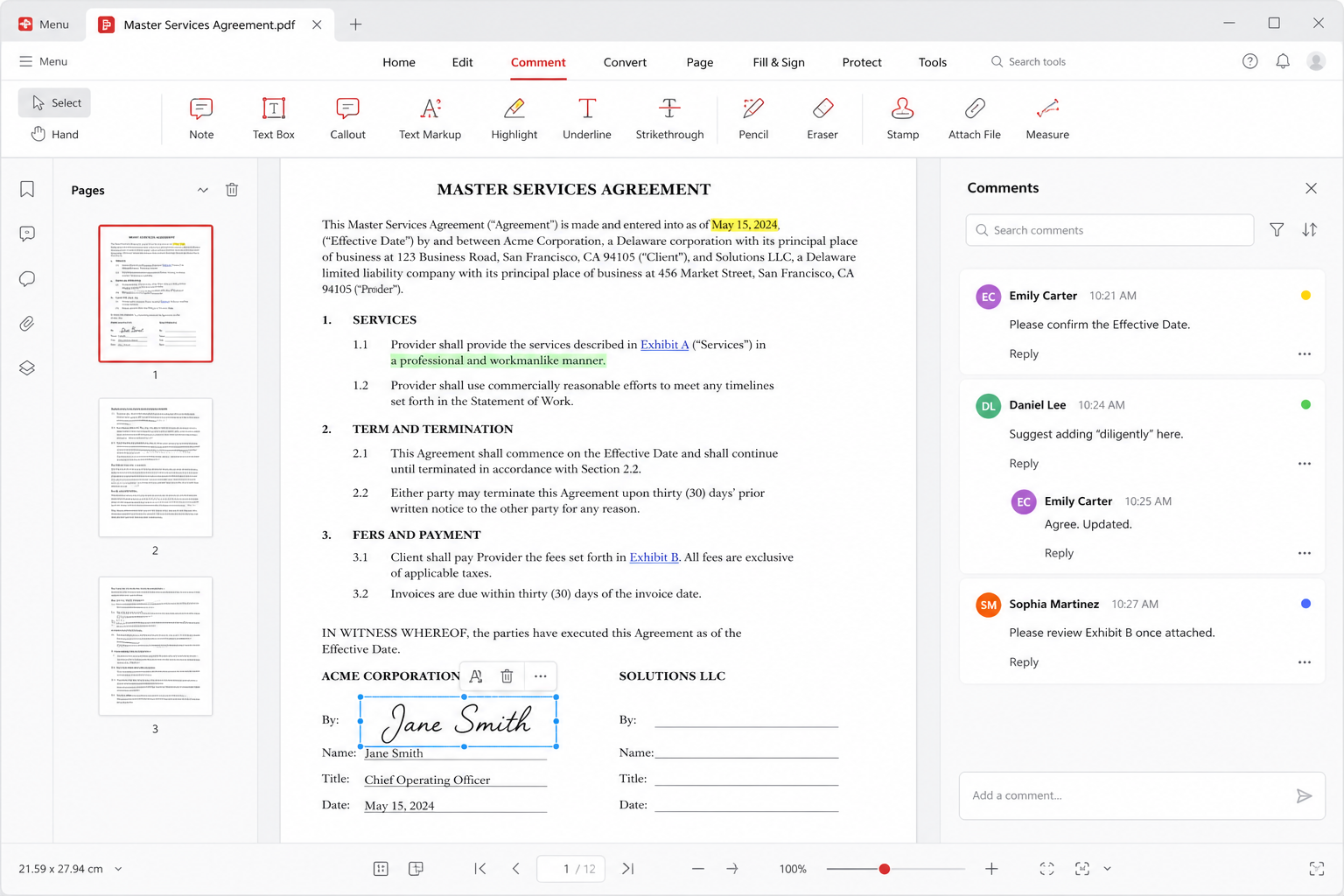
Open the file. Check the page count. Check whether it is a real text PDF or a stack of scanned images. If you cannot select a sentence, you are looking at pictures of pages. Comments and highlights still work on scans; search and copy will not, unless OCR has been run. That distinction decides your afternoon.
Annotations are for review, not for rewriting a contract. A highlight is a flag. A comment is a question. If you need new paragraphs, convert to a Writer document or ask the other party for the source file. Editing a PDF in place is possible for small fixes — a typo in a flyer, a date on a poster — and miserable for a ten-page policy. Text reflow in a PDF editor is not the same as styles in Writer.
When several people must mark the same file, comments beat five conflicting copies named final_v7_really.pdf. Cloud sharing can help. Many simultaneous typists still belong in a real collaborative editor, not in a PDF. Google Docs remains stronger for that pile-on. See collaboration.
Convert: the honest direction of travel
DOCX, XLSX, and PPTX to PDF is the reliable direction. You export from Writer, Spreadsheet, or Presentation when layout must survive a lab PC that lacks your fonts. Open the PDF on a phone. If a logo jumped, fix the source and export again.
PDF back to DOCX is the hopeful direction. It works when the PDF was born as a digital document with a clean reading order. It fails in charming ways when the PDF was a scan, a two-column journal, or a form with lines drawn as vector art. You will spend time deleting text boxes. Budget that time. For a one-page flyer, it can still be faster than retyping. For a book, retype or keep the PDF.
Spreadsheet-shaped PDFs are worse. A financial statement that looks like a table may convert into a mosaic of cells. If you need the numbers live, ask for the XLSX. If you only need to quote a total, type the total and cite the page. The guides hub collects conversion recipes; this page is the expectation-setter.
OCR is often Premium, and it is never magic
Optical character recognition turns a picture of text into text you can search. In WPS, OCR is a frequent paid wall. That is not a moral failing. It is a cost. If you only OCR three pages a year, a free web tool or a library machine may be enough. If you OCR a box of clinic intake forms every week, a paid plan or a dedicated scanner workflow will be cheaper than fighting nags.
OCR quality depends on the scan. Straight pages, high contrast, and a language that matches the engine beat a phone photo of a crumpled receipt. Always proof names, amounts, and medicine doses. A confident wrong digit is worse than no OCR. WPS AI’s “chat with PDF” can summarize a digital file; on a scan it is only as good as the OCR underneath. Read WPS AI before you let a chatbot tell you what a contract says.
Signing, forms, and the legal pause
WPS can place a signature image or walk you through a sign flow, depending on build and plan. A signature is not a sticker. Read every page, including the page that looked like a cover. If the file arrived as an email attachment from a stranger, do not sign it to “see what happens.” Verify the sender. Prefer a process your organization already recognizes: a wet signature, a known e-sign vendor, or an internal portal.
Fillable forms vary. Some PDFs are real AcroForms. Some are just lines that look like fields. Tab through. If the cursor does not land, you are decorating a picture. Print and write, or ask for a real form. Flatten a signed PDF before you publish it if you do not want the signature object to be lifted. The exact buttons move between versions; the habit does not.
Photos, scans, and file size
Phone scans are convenient and huge. Crop and rotate in Photo or the phone’s scan tool before you merge twenty pages. A 40 MB “application packet” will bounce off an email gateway. Compress when the destination is email; keep a heavier original if the destination is an archive that must stay readable at 200 percent zoom.
Merge and split are the janitorial tools you will use more than “edit text.” A campus portal that wants one PDF, not eight, is the usual reason. Check order. Check rotation. Check that you did not include the page with someone else’s ID. Cloud is optional. Free storage is about 1 GB; do not use it as the only copy of a signed lease. Cloud and free versus Premium spell out the quotas.
A PDF checklist
- Decide whether the file is live text or a scan before you plan the hour.
- Annotate for review; convert or retype when you need real editing.
- Export to PDF from Writer, sheets, or slides when layout must freeze.
- Treat PDF-to-DOCX as a draft, not a finished manuscript.
- Expect OCR to be Premium and to need proofreading.
- Read the whole file before you sign. Flatten if you must publish.
- Compress packets for email; keep a local original of anything legal.
- Install only from official channels. Search-ad “PDF crack” sites are malware weather.
Related: all apps, WPS versus Microsoft and Acrobat, Presentation handouts, and official downloads.